Installing R and RStudio
Installing R
Let’s start by download R, the programming language.
- Go to the CRAN (Collective R Archive Network) website: https://cran.r-project.org/
- Click on the link in the first box of text that corresponds to your operating system.
- Download the latest version of R (currently 4.5.2 as of January 2026).
- For macOS, select the
.pkgfile that corresponds to your processor, likely Apple silicon but possibly Intel if you have an older computer. - For Windows, select the links from the first line, either
baseorinstall R for the first time. They go to the same place. Then select theDownload R for Windowslink with the latest version of R.
- For macOS, select the
- Double click on the downloaded file (check your
Downloadsfolder). Click Yes through all the prompts to install like any other program. - If you use macOS, it is a good idea to download and install XQuartz. You do not need to do this on Windows.
Download RStudio
Next, let’s download RStudio, the application in which we will run R.
- Go to the RStudio page on Posit’s website: https://posit.co/download/rstudio-desktop/
- Follow step 2: Install RStudio since you have already complete step 1: Install R. Choose your operating system.
- Select the
Download RStudio for Desktopbutton. - Install by double clicking on the downloaded file and accept any prompts.
- Run RStudio to make sure that everything succeeded.
When you open RStudio, it should look something like this:
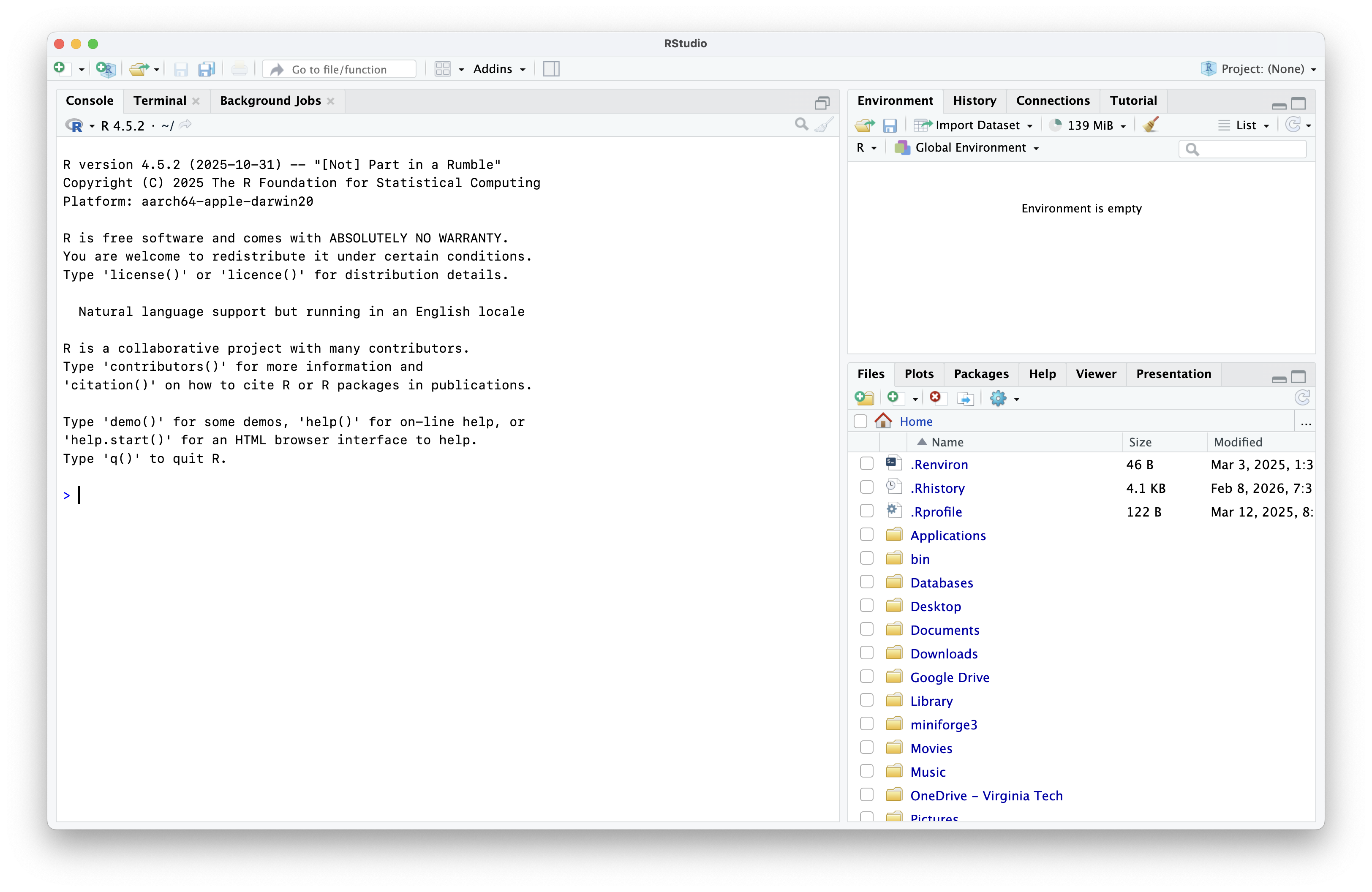
Next, check out the Setting up RStudio for more information on getting the application and your R environment set up for success.
Other options
If you are unable to download R and RStudio for any reason, you can use a cloud version of RStudio through Posit cloud. You can get started with the free plan. All you need is to create an account.