Quarto websites
Quarto websites are a collection of Quarto documents using format: html with a set structure and consistent visual style. This page will guide you through:
- Creating a Quarto website project in RStudio.
- How to render and preview your website, something that you will want to do regularly to check the changes you have made.
- How Quarto websites work, outlining the three main components of Quarto websites.
- How to deploy Quarto websites to GitHub pages. This section goes over in detail how to connect your website project to GitHub and get your website live on GitHub pages. The process is similar to, but more complex than, the general Git and GitHub workflow.
- Finally, the steps of the ongoing website workflow once you have everything setup.
Resources
The Quarto documentation is the best place to look when you have a question. The documentation will be linked extensively below, but the most important pages are:
Posit has also created a YouTube series on building a Quarto website. This series also discusses making a blog with Quarto. A blog is a Quarto website that has some additional features to allow you to have a page listing the blog posts. Otherwise, there is a great deal of overlap.
Examples of Quarto websites
Check out a small example DH website with Quarto and see how it was made by going to the project’s GitHub repository.
There are a lot of Quarto websites out in the world. Explore the gallery of websites on the Quarto site for inspiration. A couple that you might want to look at include:
- The website for this class is a Quarto website.
- OpenScapes
- Andrew Heiss
- Ted Laderas
- Affective Communication & Computing Lab
Creating a Quarto website
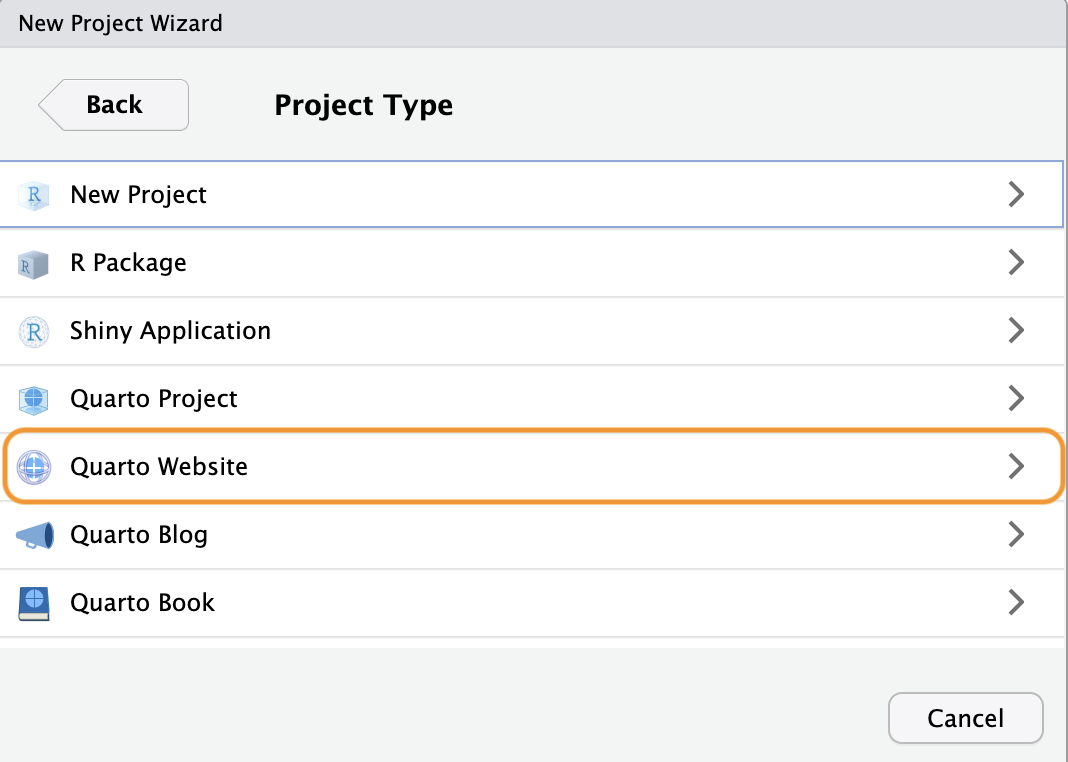
Creating a website with RStudio is done in the same way as creating a new project. Go to File -> New Project… or click on New Project in the Project dropdown at the top-right of RStudio. See Setting up RStudio for success for more details. When in the New Project dialogue window, select New Directory, and then under Project Type choose Quarto Website as in Figure 1. Give the new project folder a name, remembering the naming guidelines, and place it in your vt5444s26 folder. This will be an example website, so do not worry about the name right now. You can also
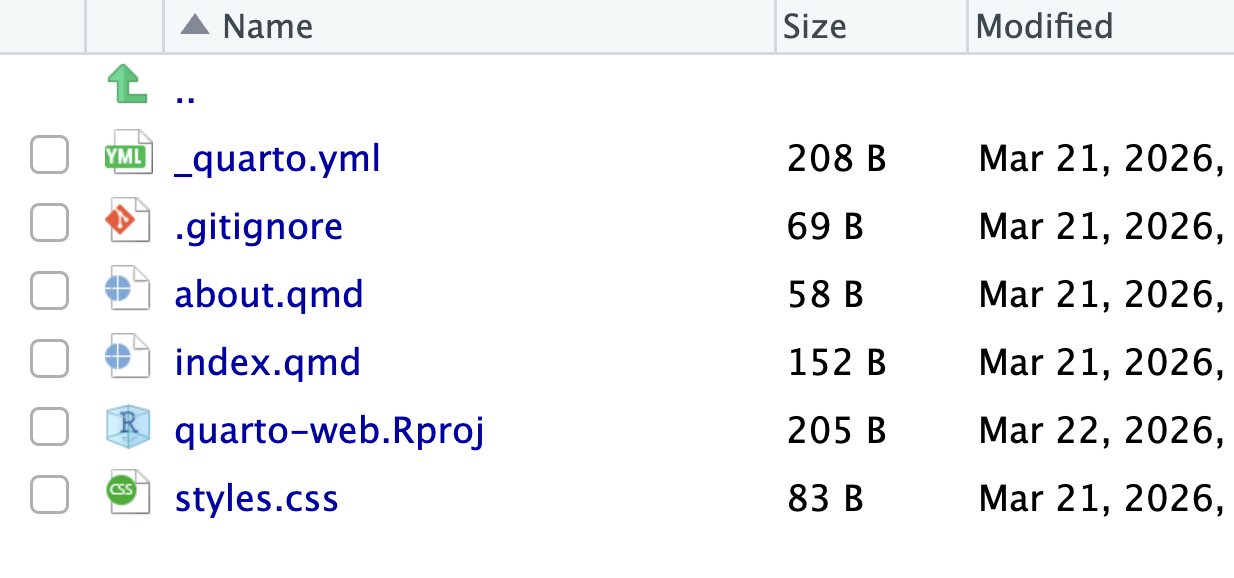
RStudio will start up a new session in your new project folder with a few template documents to get you started on your website as shown in Figure 2.
Render and preview your website
There are three main ways to render and preview your site:
- Click on the
Renderbutton at the top of the RStudio editor panel. - Click on the
Render Websitebutton in the Build tab in the upper-right panel. If some things are not being update when you use the first method, this is a good way to ensure everything is rerun. - Run the command
quarto previewin the Terminal.1
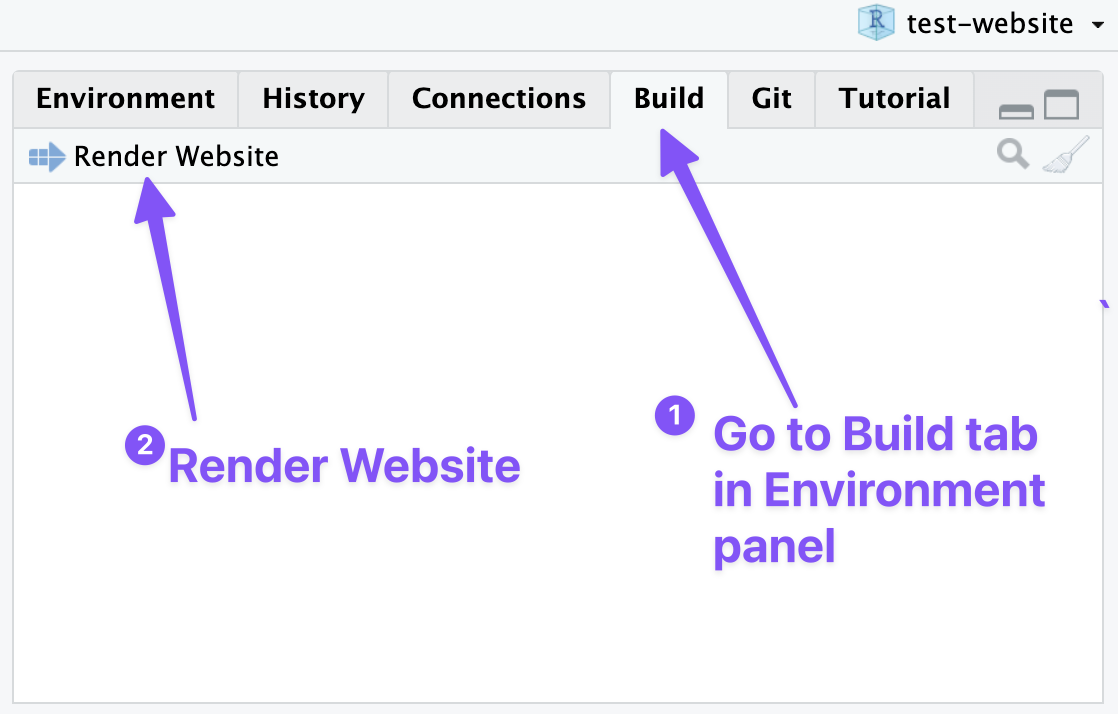
You should render and preview your site often, especially before making a commit, and definitely before pushing to GitHub. This is a way to make sure that everything looks good on your computer before making it live through GitHub. Note that you can do this one step at a time: run any code line-by-line, render a single page, build the whole website, and look at the preview.
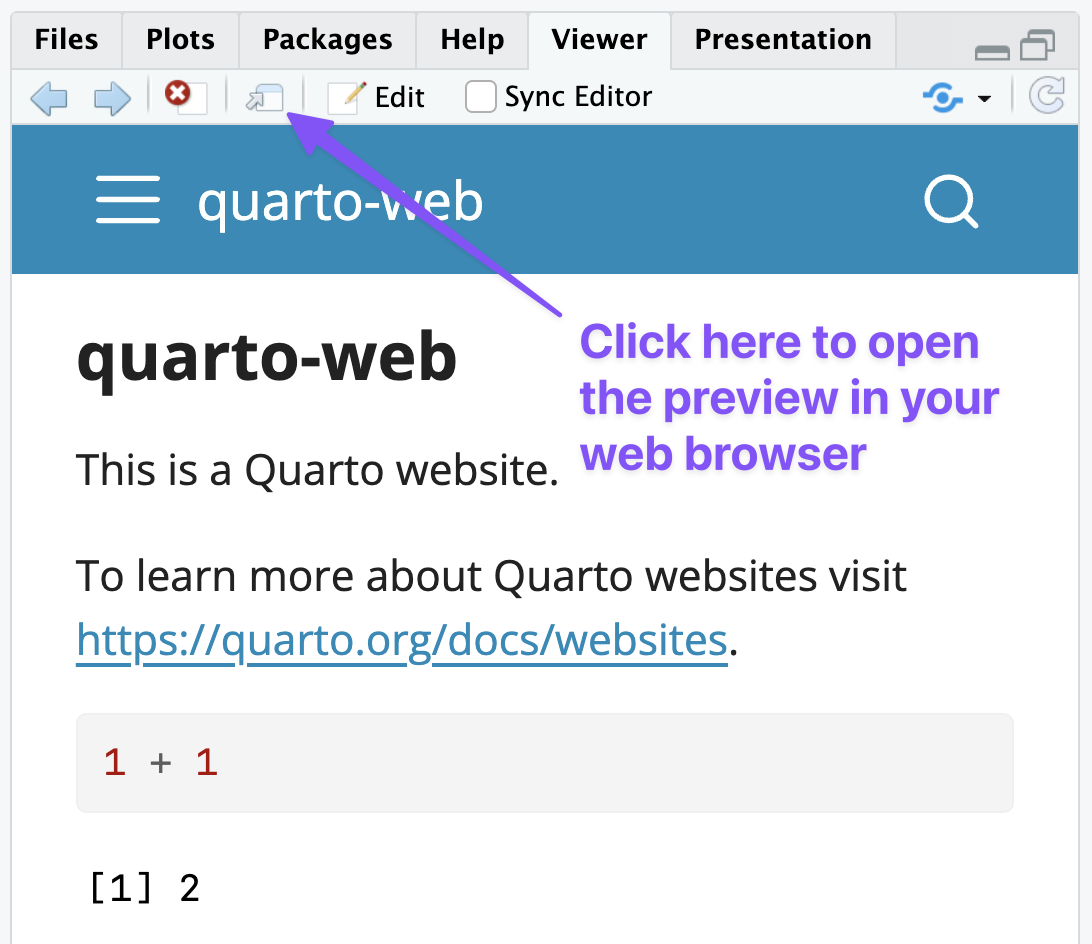
When the website is rendered, a new _site folder will be created. This folder contains all of the HTML files that make up your website. You will also see the preview of the site open in the View panel on the right. You can click on the Show in new window button as shown in Figure 4 to open the preview in your browser.
Open up index.qmd and make some changes to the text. Save the file and then click on Render, or check the box for Render on save, and see what happens. The website updates with the new content. This is the basic workflow for working on a Quarto website. Make some changes and then see what they look like by previewing them.
How Quarto websites work
Let’s now dig into the files that were created with the website project to understand a bit more about the different types of files and how they work to create a website. There are three types of files in the website template that represent the three main types of files used to create a Quarto website.
- Quarto documents: Each document is a web page.
_quarto.yml: Configuration file that determines the structure of the website and website wide settings.- A CSS or SCSS style sheet that sets the style for the website.
Let’s go through these one by one.
1. Quarto documents
Each document is a web page. index.qmd and about.qmd are special pages. All other Quarto documents are other web pages. See the HTML documents documentation on options for HTML documents. The YAML heading for each document can be very simple because _quarto.yml can be used to set the options for the whole site.
index.qmdis the home page.about.qmdis about page that has some special themes.
Adding a new page to your website us a two step process:
- Create a new Quarto document and give it a name (normal naming procedures apply, no spaces or special characters). Add content to the document.
- Add the name of the Quarto document to the
_quarto.ymlconfiguration file as described below.
2. Configuration file
_quarto.yml is a YAML file that determines the structure of the website and sets website wide options. The Website navigation documentation shows the different options for setting up the structure of the website. You can use a top navigation bar, a side bar, or a combination of the two. For instance, to add a Quarto page about historical context as contained in a Quarto document named context.qmd to your website on a top navbar, your configuration file might look like:
_quarto.yml
  navbar:
    right: # have links to pages begin from right ride
      - href: index.qmd # Homepage of the website
        text: Home
      - href: context.qmd # Add the historical context page
      - href: about.qmd
The _quarto.yml configuration file can also be used to set website-wide options for the webpages such as whether to include a table of contents or the numbering of sections among many others. See the HTML options page for a complete list of choices available to you.
3. Styles and theme
The HTML theming and More about themes documentation goes into the details on styling you website.
Quarto websites use a base theme that is set within the _quarto.yml configuration file. Quarto themes are based on the 25 bootswatch themes, which can be set under the theme key. You can also set important base styling options within the _quarto.yml file.
But, if you want to alter any aspect of the style of you website, you can do so using CSS (Cascading Style Sheets). However, Quarto is set up to use Sass or a .scss file. See the Sass variables documentation on how to change styling options with a .scss file. To point to use both a base theme and some special changes in a SCSS file, your _quarto.yml configuration file might look like the following:
_quarto.yml
format:
  html:
    theme:
      - cosmo # Base quarto theme
      - styles.scss # SCSS file with particular styling choices
One common desire is to choose your own font. Google fonts is a popular way to access web fonts. The Google Fonts documentation discusses the background for using the service. The easiest way to use one or more fonts on a website is to place the import url at the top of you .scss file, as noted in this discussion on Quarto. For instance, this website uses Source Serif 4 for headings. This can by having the following in your .scss file.
styles.scss
/* css styles */
@import url('https://fonts.googleapis.com/css2?family=Source+Serif+4:ital,opsz,wght@0,8..60,200..900;1,8..60,200..900&display=swap');

/*-- scss:defaults --*/
$headings-font-family: "Source Serif 4", serif !default;
You can access the @import url by selecting the Get font button and then the Get embed code button and selecting the Import option. You may want to only choose some of the available font weights.
Deploying Quarto websites to GitHub Pages
These instructions show how to deploy a Quarto website to GitHub pages using a GitHub Action. See the instructions here from the Quarto documentation for more details. GitHub pages uses a special gh-pages branch to host static websites created by tools such as Quarto.
Set up local repository to use GitHub Actions
Add
/.quarto/and/_site/to.gitignorefile.The_site/folder is created from the Quarto files and will be created by the GitHub action set up in step 7..gitignore
/.quarto/
/_site/
Set
freeze: autoin_quarto.yml: This makes it so Quarto will only rerender a file if it has changed, making the preview and render workflow faster. See the documentation on use of freeze._quarto.yml
execute:
  freeze: auto
Render site to create a
_freezefolder.Add and commit the changes to
.gitignore,_quarto.ymland the_freezefolder. Anytime changes occur in_freeze, these should be included in your commit.
Create connection to GitHub using Local first method
- Create empty repository on GitHub with the same name as your website project.
- Add remote with
git remote add origin your-url-here - Push and
set-upstreamto GitHub:git push --set-upstream origin main
Create
gh-pagesbranch on local repository- Make sure you have committed all changes to your current working branch with
git status. - Close all of your tabs in RStudio. The following actions will delete all of your files on the new branch. This is ok!
git checkout --orphan gh-pages git reset --hard # make sure all changes are committed before running this! git commit --allow-empty -m "Initialising gh-pages branch" git push origin gh-pages- Make sure you have committed all changes to your current working branch with
Switch back to main branch
git switch mainCheck GitHub Pages setup
- Go to GitHub
- Click on the Branches dropdown in the upper left that should say main and then click View all branches.
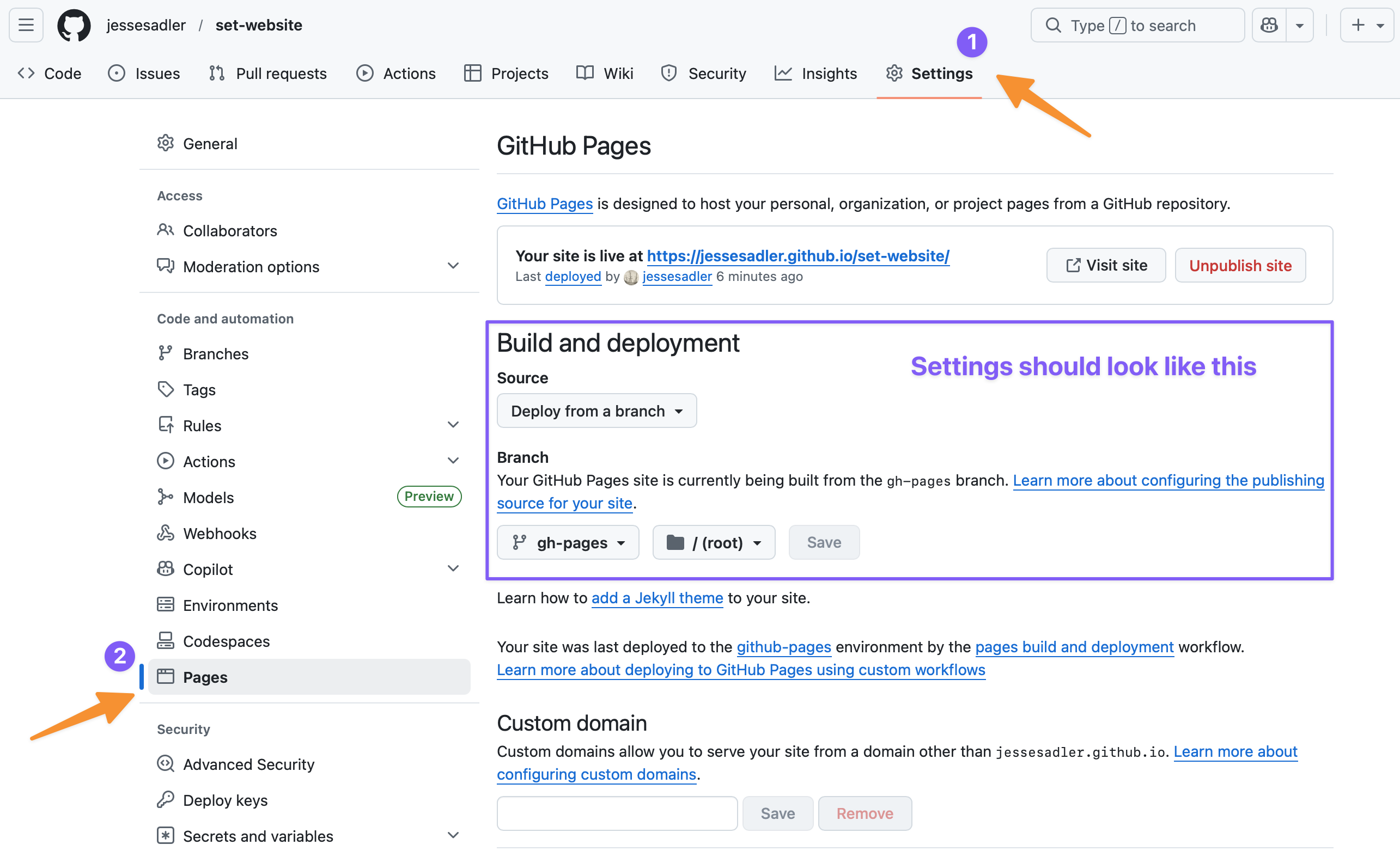
- Go to Settings -> Pages
- check that the Source branch for your repository is
gh-pagesand that the site directory is set to the/(root)repository as shown in Figure 5.
Make first publish
- Make sure you are on your
mainbranch. You can check this in the Git Tab of RStudio or by runninggit branchin the Terminal. - Run
quarto publish gh-pagesin the Terminal and then enter Y for yes.
- Make sure you are on your
Add GitHub publish action
- Add
.github/workflows/publish.ymlcopying from the Publish action in the Quarto documentation. In other words:- add a folder named
.githubto your project, - then add a folder inside that named
workflows, - then create a document within that folder named
publish.yml(making sure to have the.ymlextension). You can use the New File menu and choose Text File. - Finally, copy the contents of the Publish action from the Quarto documentation.
- add a folder named
- Add and commit the new file.
- Add
Push your project to GitHub
- Make a push to GitHub:
git push. - You should now be able to return to the repository page on GitHub and see an Action running. Click on the Action tab to see the progress.
- If the action runs correctly, the website should be online and updated.
- In the repository page on GitHub click on the gear button in the About section on the right. Click on the box to use your GitHub pages website as the url of the project. This will make it easier to click over to your website.
- Make a push to GitHub:
Add the
site-urlto the_quarto.yml.- Now that you have a url for your site, you can add the url to the
site-urloption underwebsitein your_quarto.ymlconfiguration file as discussed in the social metadata section of the Quarto documentation.
- Now that you have a url for your site, you can add the url to the
The ongoing website workflow
With the GitHub Action set up the website workflow is largely the same as the normal Git and GitHub workflow, but it is even more important that you check the output of your changes before committing and pushing because your site cannot update if there is a problem in the build process.2
Make sure to go over the basic structure of Quarto websites as discussed above in How Quarto websites work on adding pages and changing styles.
- Make changes to your website project, saving the files as you go along.
- Build and preview the website to see that everything works and to ensure that the
_freezefolder with all of the R outputs is updated. - Make a commit consisting of a defined set of changes, including those to the
_freezefolder. This is a two-step process.- Add the changes to the stage that you want to be part of a commit.
- Commit the staged files with a message about the changes.
- Repeat steps 1–3, making sure to build and preview your website often.
- Push to GitHub to make your changes live to your website.
- Take extra care before pushing to GitHub that you fully built your website and have committed all necessary files.
- You can go to the GitHub repo to make sure that the publish GitHub Action worked correctly.
- Check the live website to make sure everything looks good, though note that your browser might cache the previous version of the website, so it may appear as if the website has not updated immediately.
- Repeat steps 1–5.
Finally, when in doubt, check the Quarto documentation or look at the different resources on the syllabus.