Using R in RStudio
This page provides some resources, tips, and useful keyboard shortcuts that will make it easier to write and run R code in RStudio. There are always multiple ways to do something in RStudio, and you will develop your own usage patterns as you work more in RStudio. Let’s start with some key resources.
- RStudio user guide: If you have a question about using RStudio, check the user guide.
- RStudio cheat sheet: For a quick overview of RStudio check the cheat sheet.
Opening RStudio
Let’s start by making sure we can open RStudio. You can open the application as you would any other application. However, I recommend starting RStudio by double-clicking on the project file (.Rproj) for a project. You can open multiple instances of RStudio at once, working on a variety of projects. If you want to switch from one project to another, the easiest way is through Project drop down on the top right of the RStudio window.
How to find and run commands
- Keyboard Shortcut Reference: Help -> Keyboard Shortcuts Help,
Alt + Shift + K, orOption + Shift + K - Command palette:
Ctrl + Shift + PorCmd + Shift + P- Provides a text searchable interface to run all of RStudio’s commands.
Coding foundations
| Command | Windows | macOS |
|---|---|---|
| Run R expression while in the console | Enter |
Return |
| Run R current expression from the editor pane | Ctrl + Enter |
Cmd + Return |
| Tab completion for functions and objects | Tab + Tab |
Tab + Tab |
Assignment operator (<-) |
Alt + - |
Option + - |
Insert pipe operator |> or %>% |
Ctrl + Shift + M |
Cmd + Shift + M |
| Create a section in an R script | Ctrl + Shift + R |
Cmd + Shift + R |
Comment out code by placing # at beginning of line |
Ctrl + Shift + C |
Cmd + Shift + C |
Be aware of the state of your console
There will be times where you accidentally run a partial R expression. Maybe you forgot a closing quotation mark or parentheses. Or you forgot a pipe or plus sign in building a ggplot. You will see the consequences of this in the console. Instead of the prompt (>) telling you R is ready for the next expression, it will have a plus sign (+) telling you R does not think you are done with the previous expression. You can get out of this by finishing the code, pressing ESC or Ctrl + C.
- Prompt
>: R is ready for the next expression. - Continuation
+: R does not think you are done with previous expression.- Exit continuation by pressing
ESCorCtrl + C.
- Exit continuation by pressing
Viewing data and documentation
When you are writing code and doing exploratory data analysis, you will find yourself needing to look at your data or investigate different functions and how they work. Even if you work with a specific data frame for a long time or have used a function hundreds of times, you may need to remind yourself of a column or argument name. You can do both of these activities in RStudio through the GUI or by running code. If you do it by running code, this is a good example of the different uses of the console compared to a script. Because you are looking for information right now rather than noting that you will always want this information, you should be running this code in the console.
RStudio has a powerful Data viewer in which you can view data frames in a spreadsheet-like manner. You can view a data frame in the viewer by either:
- Click on the data frame in the Environment pane.
- Run
View(data_name)in the console.
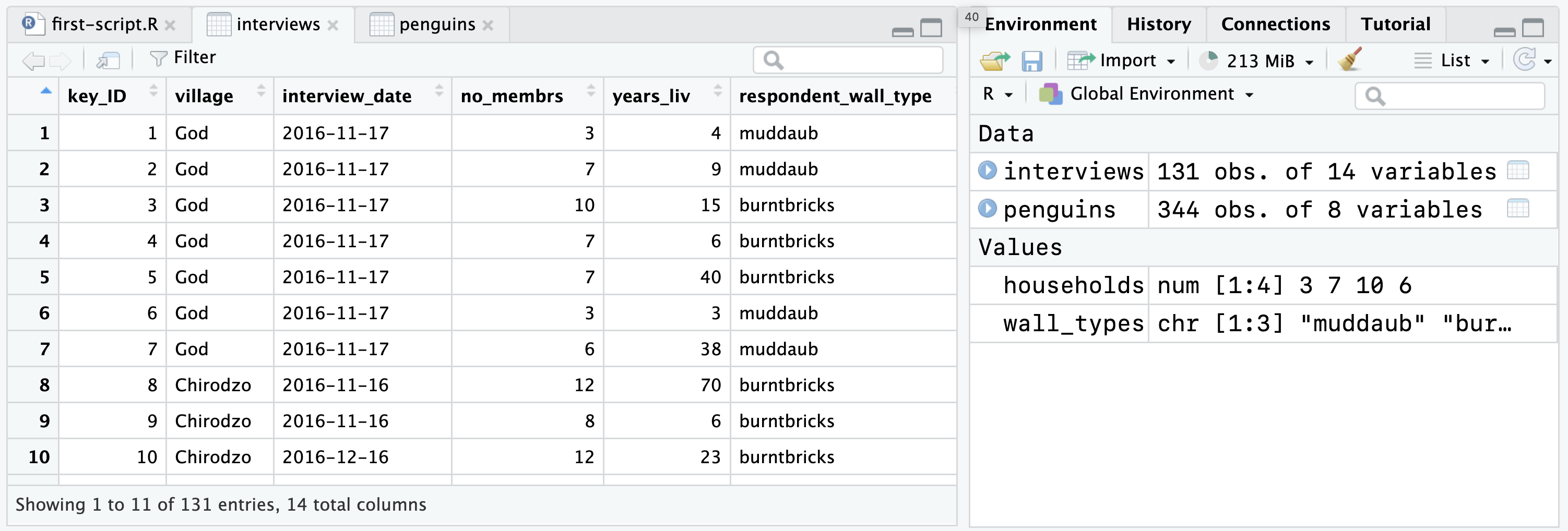
View(data_name) or clicking on a data frame object in the environment pane on the right.
You can read the documentation for a function in the Help tab. RStudio even provides a link to run the examples found at the bottom of the help page. To get to the documentation for a function you can either:
- Go to the Help tab in the File pane on the bottom right and search for the function.
- Run
?function_namein the console.
A reproducible workflow
In Setting up RStudio for success we set up RStudio to not save our workspace when we restart R. We did this to ensure that the true source for our analysis could be recreated through our script. It is valuable to check this every once in a while by restarting R. You can then rerun your entire script to make sure that you have fully captured your analysis in the script.
- Restart R
- Use the command palette: Restart R Session
- Session -> Restart R
- Windows:
Ctrl + Shift + F10 - macOS:
Cmd + Shift + 0
- Rerun script
- Run all expressions at once:
Ctrl + Shift + SorCmd + Shift + S - Run each expression at a time:
Ctrl + EnterorCmd + Return
- Run all expressions at once:
Even though the latter may seem tedious, there are benefits to it. Because Ctrl + Enter or Cmd + Return not only runs the current expression, it also moves the cursor to the next expression, you can hold down Ctrl or Cmd` and hit return quite quickly. This way can also make it easier to identify where a problem occurs, at least as long as you keep looking for errors in the console.